
A read-later inbox that runs on your computer
Save it from your phone.
Read it when it’s due.
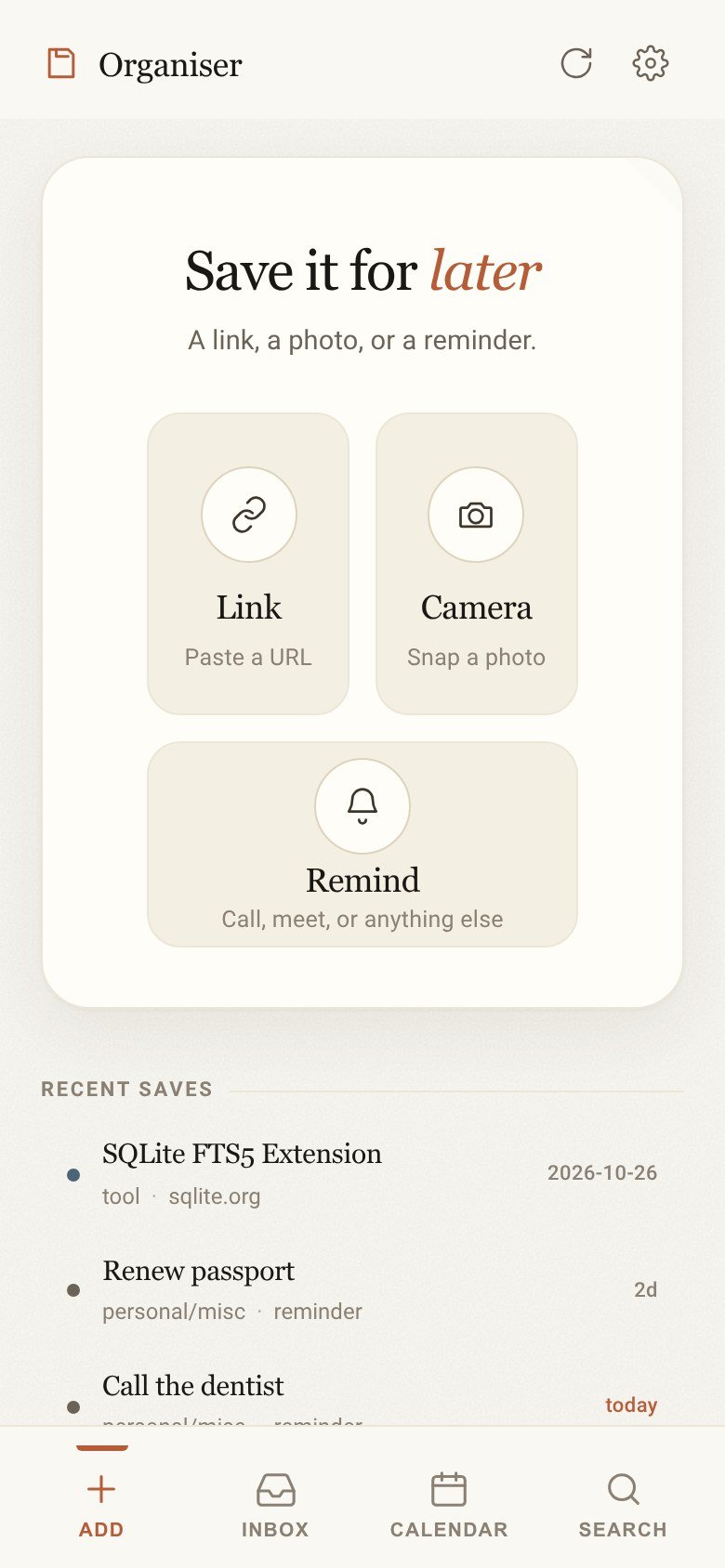
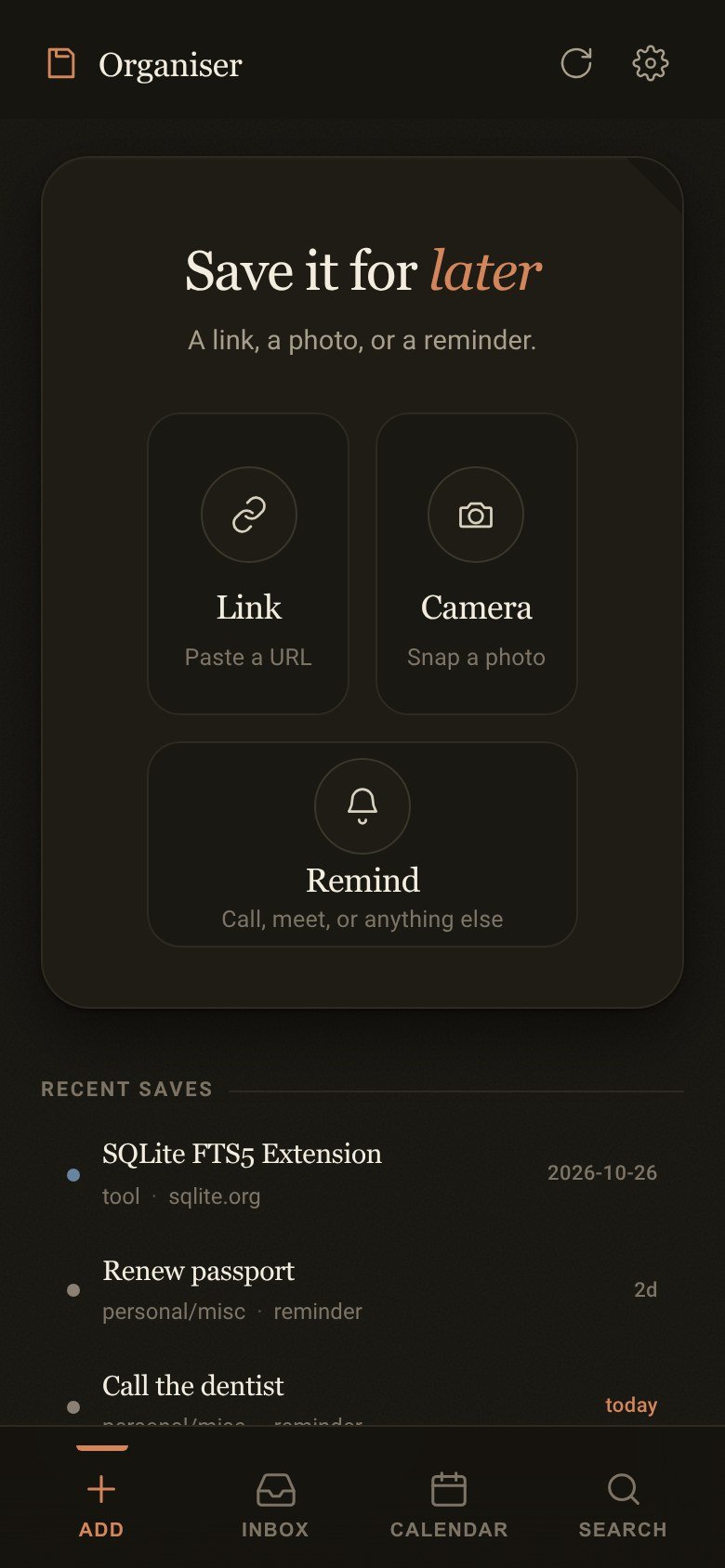
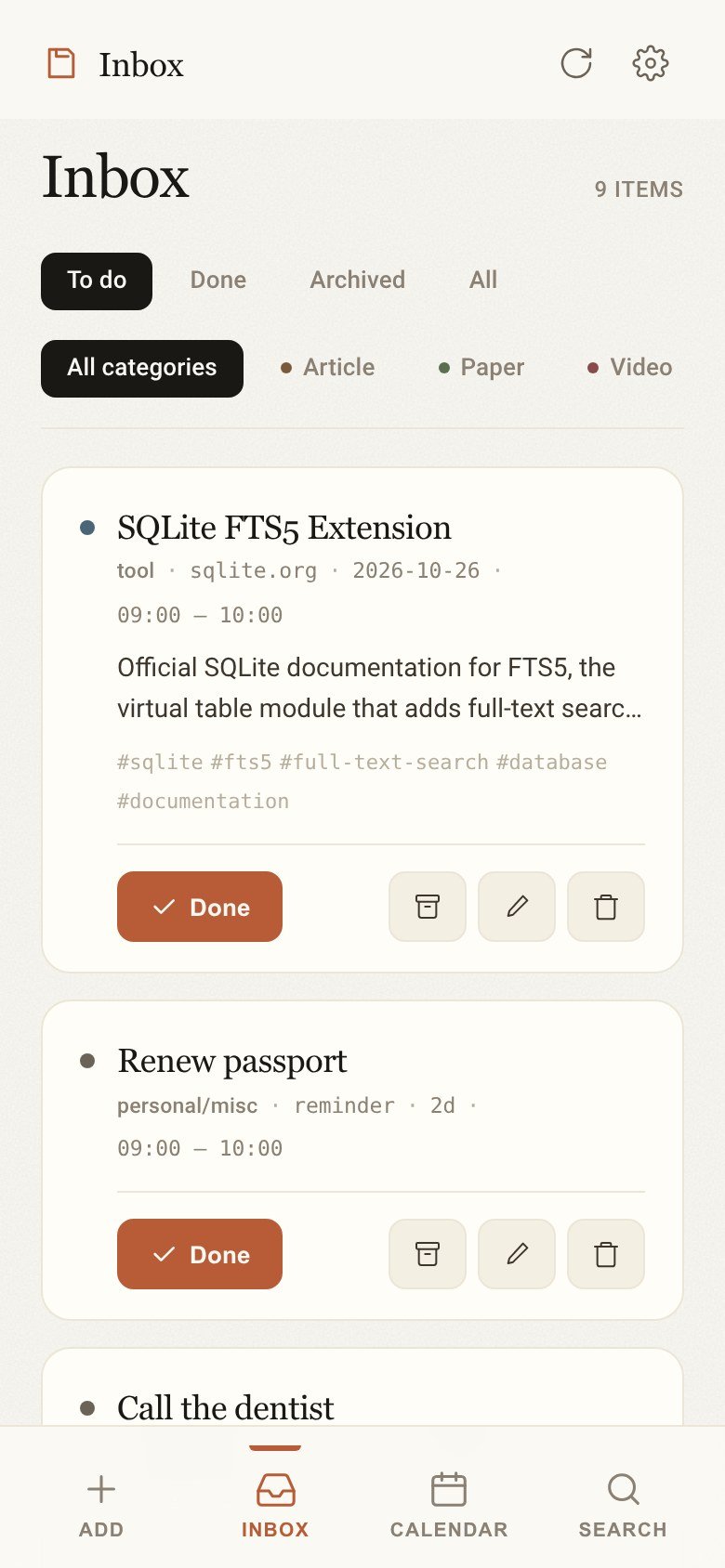
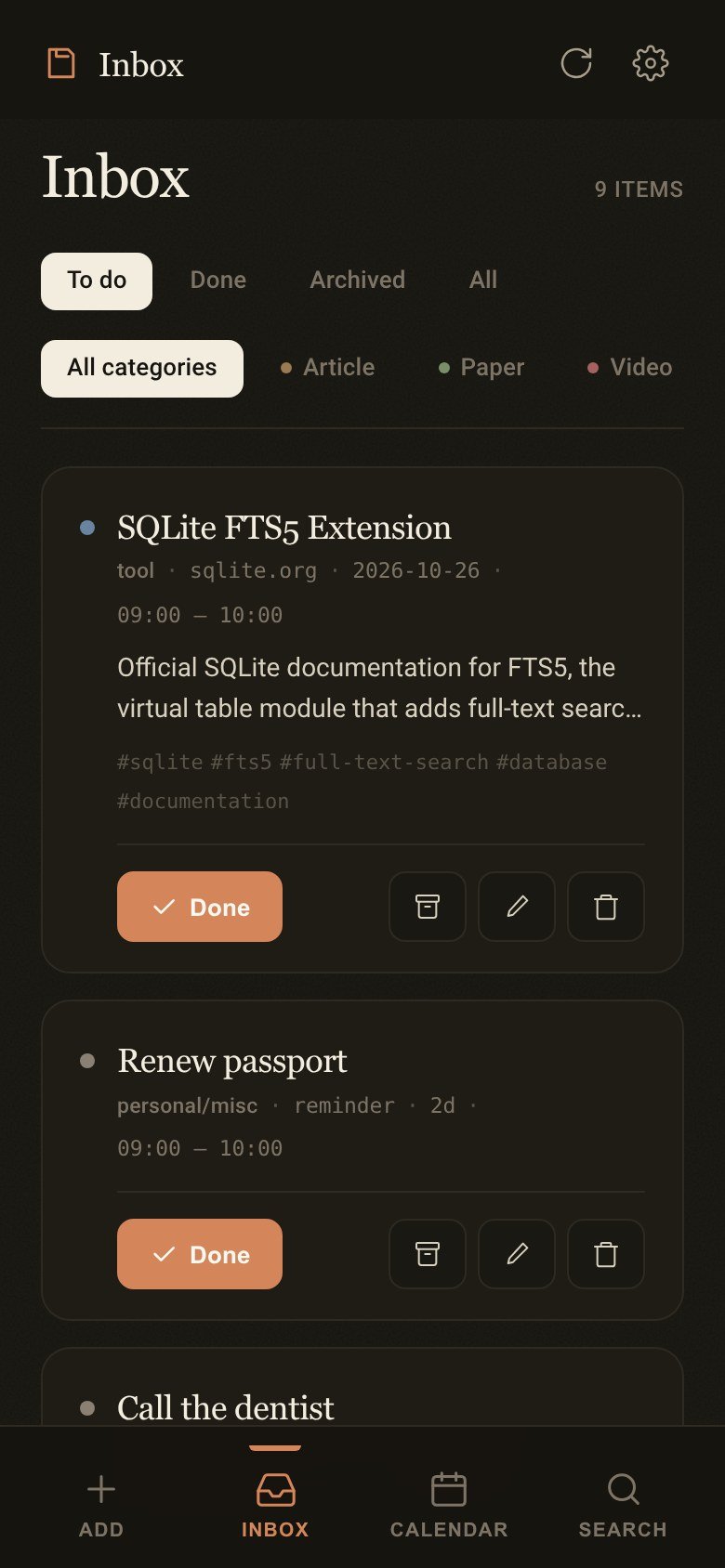
Share a link, a photo or a reminder from your phone. Your computer sorts it into a category, writes a short summary, gives it a read-by date, and sends a notification when that date comes.
Free and open source. No account.
How it works
A server on your computer and an app on your phone.
The server is one Python process. It serves the phone app, stores your items in SQLite, classifies each save and sends the notifications. The phone app is a web page you add to your home screen. It talks to your computer directly, over Tailscale or your home network.
The app
Save, browse, search and mark done. Pair it once with a code or a QR code.
The server
Flask and SQLite, running as a systemd or launchd service.
A model you choose
claude, codex, gemini, Ollama, an OpenAI-compatible API, or rules only.
Save
A link, photo or reminder.
Paste a link, take a photo, or type a reminder for a call or a meeting. On phones that support it, sharing a link to the installed app saves it immediately.
The server fetches the page, falling back to a headless browser for sites that need JavaScript. Photos are read by the model when it can read images; otherwise OCR extracts the text. A link found in a photo is saved like any other link.
Sort
Classified, summarised and dated.
Each saved link or photo gets one of eleven categories (Article, Paper, Video, Tool, Tweet, Repo, Job, Recipe, Travel, Shopping, Personal), a short summary, a few tags and a read-by date. The model suggests how soon to read it; otherwise each category has a default, from a day for a tweet to a month for a recipe.
You can edit the title, summary, category, date, time and notes of any item, and search everything you have saved.
Remind
A notification when it’s due.
Your computer sends the notifications itself, as Web Push:
- a daily digest of what’s due, at 09:00 or a time you set;
- a notification at an item’s start time on the day it is due.
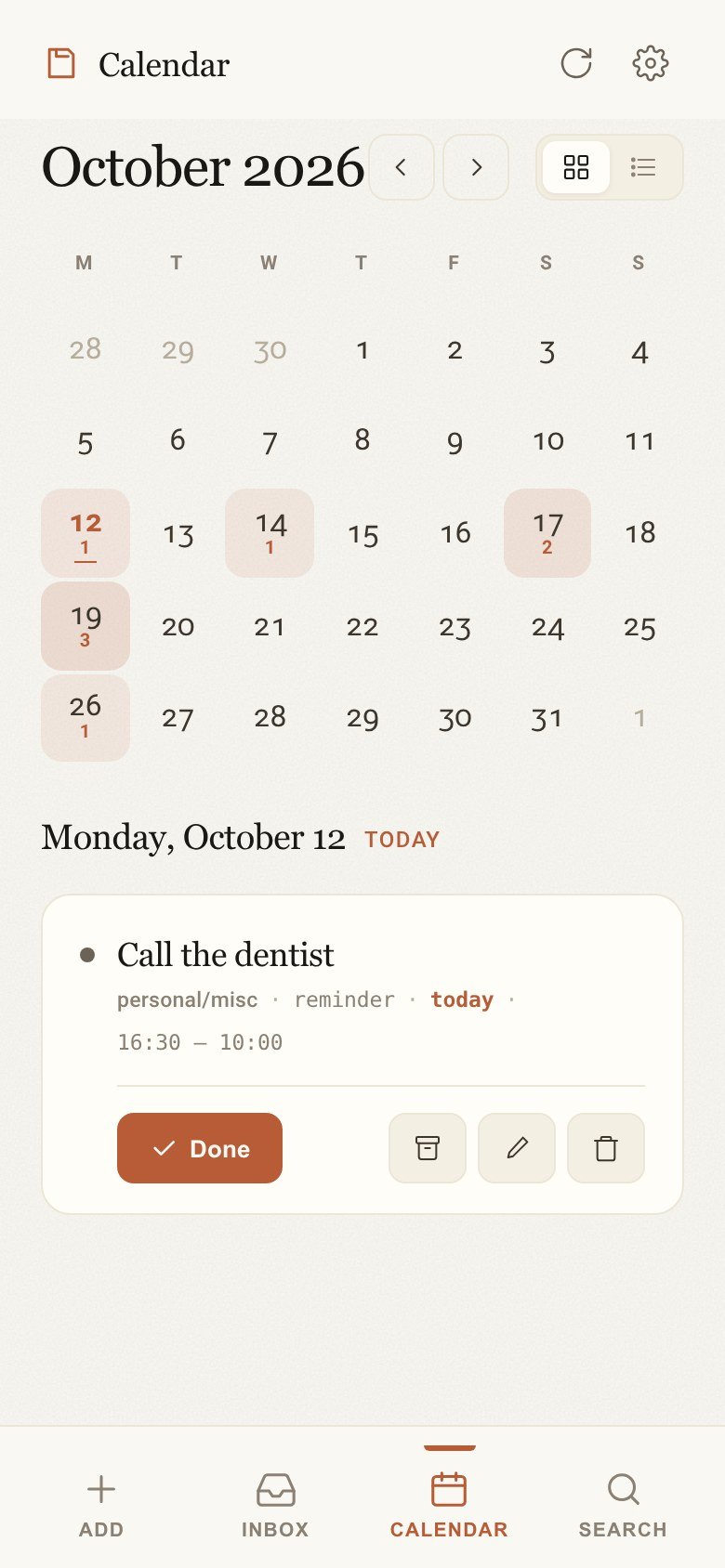
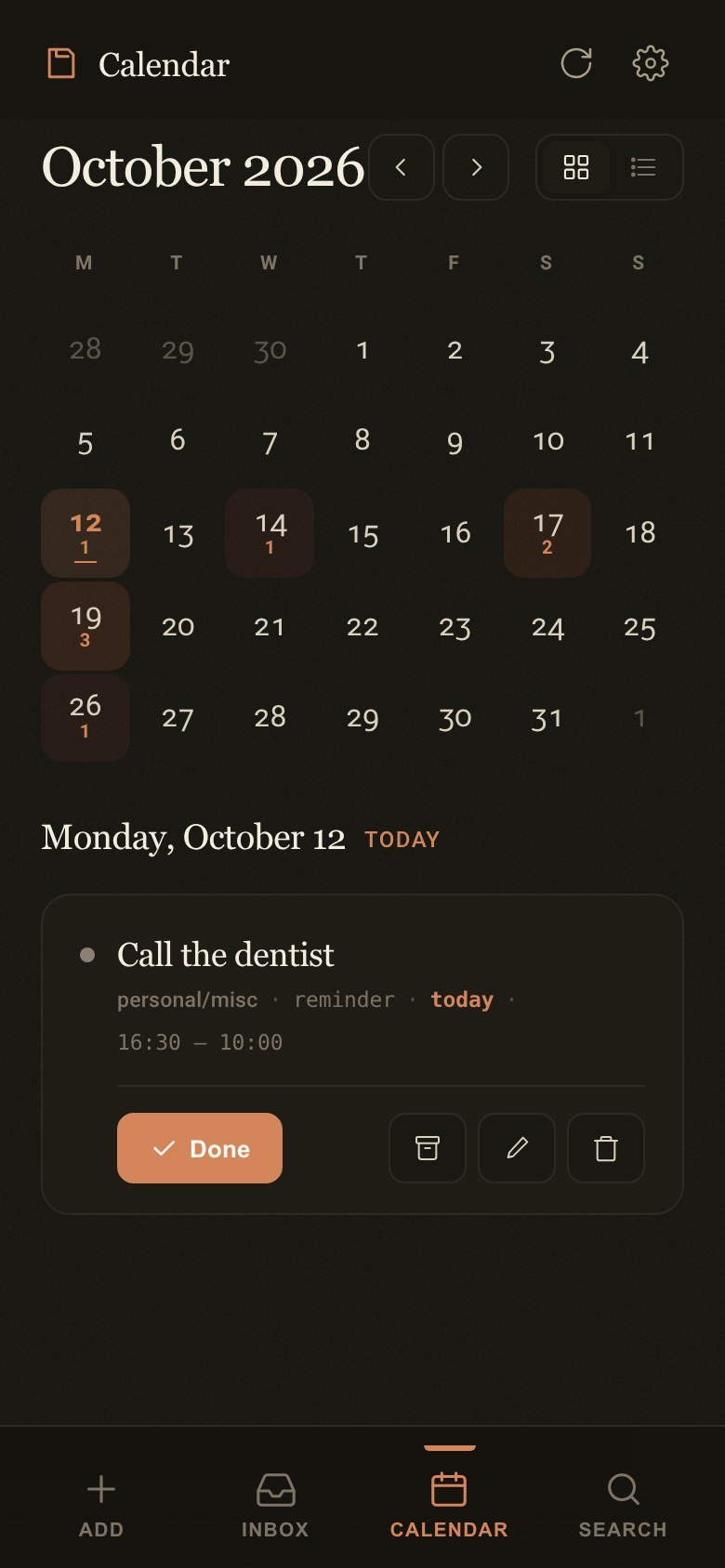
Tapping one opens the app on that item, or on the calendar for the digest. The calendar shows what is due on each day, and there is an .ics feed if you would rather see it in your calendar app. On iPhone, notifications need the app added to the home screen.
Classifier
Use the model you already have.
The installer checks which classifiers this machine can run and asks which to use. You can change it later.
| claude | The Claude Code CLI (claude -p). | Reads photos |
|---|---|---|
| codex | The Codex CLI (codex exec). | Reads photos |
| gemini | The Gemini CLI (gemini -p). | Reads photos |
| ollama | A local Ollama server and a model of your choice. | With a vision model |
| api | Any OpenAI-compatible endpoint: a hosted API or a local LM Studio or llama.cpp server. | If the model can |
| none | No model: URL and domain rules plus the page title and description. | OCR |
Your items are stored only on your computer. With claude, codex, gemini or a hosted API, the link and page text are sent to that provider to be classified. With Ollama, a local API server or none, no model provider sees them.
Install
Install
Linux or macOS. The installer needs no sudo.
On your computer
Run the installer on the computer where your saves should be stored:
$ curl -fsSL https://apps.saidwivedi.in/organiser/install.sh | bash
It builds a Python environment, asks which classifier to use, creates a pairing code, installs a service and prints a QR code for your phone.
On your phone
Open the app and add it to your home screen: on iPhone, Share, then Add to Home Screen; on Android, Install app. iPhone needs this for notifications.
Your computer also serves the same app at its own address.
Connect
Scan the QR code the installer printed, or enter the address and pairing code in Settings. Then turn on notifications in Settings.
To reach your computer from anywhere, publish it on your tailnet:
$ sudo tailscale serve --bg --set-path /organiser 5557
Or clone the repository and install in place:
git clone https://github.com/saidwivedi/organiser.git && cd organiser && ./install.sh
Questions
Questions
Who can see my saves?
Anyone with your computer’s address and the pairing code. The code is the only credential, so treat it like a password; you can replace it at any time, and every phone must then pair again. Repeated wrong codes are rate-limited. Expose the server over Tailscale or your own network, not the open internet.
Do I need Tailscale?
No. On the same Wi-Fi the phone can use your computer’s local address. Notifications need HTTPS, and plain local HTTP does not have it. Tailscale gives you an HTTPS address that works from anywhere.
What does the hosted app at this address receive?
It is a static page and never receives your items or your code. Your phone keeps the address and code in its own storage and calls your computer directly. A pairing link carries the code after a #, which browsers never send to a server.
How do I update it?
Run the installer again with --update. It keeps your
pairing code, your items and your settings.
Save it now. Read it when it’s due.
Install Organiser once on your computer, then save from your phone.